

Introduction to the Garmin R10: Revolutionizing Golf Training
It is 6:40 on a weeknight, the range closed an hour ago, and you still want fifty balls with the 7-iron. The Garmin Approach R10 is the radar launch monitor that makes that session count: it sits on the ground 6 to 8 feet behind the tee, reads every shot and sends the numbers to the Garmin Golf app on your phone or tablet.
This guide covers the first setup, the accessories worth adding, what each metric tells you, how to build practice around the numbers and the fixes for the problems owners hit most.
Key Features of the Garmin R10 Every Golfer Should Know
Garmin Approach R10 packs a punch with a bucket load of features designed to perfect your swing and overall game.

Garmin R10 tracks your club head speed, ball speed, spin, launch angle, launch direction, smash factor and more, giving you immediate feedback on each shot. This data is gold for tweaking your performance.
Then there’s the Video Recording Feature. Swing, hit, and watch. It’s that simple. Record your swing with your phone via Garmin Golf app, playback, see what’s working and what’s not, and adjust. You’re practically your own coach.
Another standout is its Simulation Capability. Yes, you read that right. With a Garmin Golf membership, the Home Tee Hero app, which runs with the Garmin Golf app, lets you play over 43,000 courses from around the world, right from where you are. No need to travel; bring the courses to you and practice as if you’re there. The R10 is also compatible with GSPro, E6 Connect, E6 APEX, Awesome Golf and Creative Golf 3D, each sold separately.
The R10 connects to the Garmin Golf app, where you can analyze your performance deeper, and a Garmin Golf membership adds the weekly tournament. It makes practicing not just beneficial but seriously fun.
Work on improving your game anywhere and any time of year. Approach R10 is easy to move from inside your home to the backyard and even to the driving range. Spend more time playing between charges with up to 10 hours of battery life.
In simple terms, the Garmin R10 is like having a personal golf trainer, analyst, and course library in your pocket. Whether you’re practicing at the range or in your backyard, this device is set to be your golf game’s best friend.
Setting Up Your Garmin R10 for the First Time
Setting up your Garmin R10 for the first time is straightforward.

First, charge the device using the USB cable provided. Once it’s fully charged, power it on by pressing the button on the side.
Next, you’ll need to download the Garmin Golf app on your smartphone. This app is key as it syncs with your R10, allowing you to track and analyze your shots.
Open the app, create an account if you haven’t already, and follow the prompts to connect your R10. The device uses Bluetooth, so make sure your phone’s Bluetooth is on.
After the initial setup, place the R10 facing your hitting area. It should be placed level and about 6 to 8 feet away from the ball. This positioning is crucial for accurate data capture.
Now, you’re ready to start swinging.
Choosing the Right Accessories for Your Garmin R10
When you’ve got a Garmin R10, you’re holding a difference-maker for golf practice. But to make the most out of this tool, you need the right accessories.

First off, a good protective case is non-negotiable. It keeps your device safe and sound, from home to the driving range and back. The case is included with your device for FREE.
Next, consider getting a tripod for your phone to record the videos of your swing.
Then, there’s the power source. Sure, the R10 comes with its own battery, but having a portable charger can be a lifesaver, especially during long practice days.
Don’t forget about the smartphone app. It’s not exactly a physical accessory, but downloading the Garmin Golf app is crucial for analyzing your stats and progress.
Lastly, invest in quality golf balls. Better golf balls give more accurate readings, helping you fine-tune your game even further.
With these accessories, you’re not just practicing; you’re upgrading your whole golf experience.
How to Analyze Your Swing with the Garmin R10
The Garmin R10 is your new best friend on the golf course, but to get the most out of it, you need to know how to analyze your swing.

Here’s how you do it: First off, set up the Garmin R10 aiming down your target line. This positioning helps capture the most accurate data.
After you take a swing, the device collects a treasure trove of information, from club head speed to ball spin. The key stats to watch include club head speed, which shows how fast you’re swinging the club; launch angle, indicating the initial angle of the ball right after impact; spin rate, which affects how far and how straight the ball will go; and the smash factor, a cool term that measures the efficiency of your swing. Get into these numbers.
If your club head speed is slow, it might be time to work on your strength. A low launch angle? Check your club position at impact. High spin rate could mean you’re hitting the ball inconsistently. And a low smash factor? You’re probably not hitting the ball squarely.
Use these insights to adjust your technique. Keep practicing, and watch your game improve.
Understanding the Metrics: What Your Garmin R10 Tells You
The Garmin R10 packs a punch, offering deep insights into your game. At its core, this gadget measures ball speed, launch angle, smash factor, spin rate, and carry distance. Here’s the breakdown:

Ball speed clues you into how fast the ball zips off the club face, a direct result of your swing power.
Launch angle tells you the initial ascent angle of the ball post-impact, critical for nailing those long drives.
Smash factor might sound cool, and it is - it’s a metric that gauges the efficiency of your strike, calculated by dividing the ball speed by club head speed. A higher number here means you’re making the most out of your swing.
Spin rate is all about control, influencing the ball’s flight path and how it behaves once it lands.
Lastly, carry distance measures how far the ball travels through the air before hitting the ground, which helps in selecting the right club for your shot.
In short, the Garmin R10 doesn’t just track; it arms you with knowledge to fine-tune your game, making each stroke, each swing, and each session count towards shaving off those extra shots. Keep an eye on these metrics, and you’re already on your way to more focused, effective practice sessions.
Integrating Garmin R10 Data with Your Training Regimen
Integrating the Garmin R10 data into your training regimen is like unlocking a treasure chest of insights.

First off, get familiar with its basic features. You’ll find it measures a lot of stats, but how do you use this data? Start by identifying your weaknesses. Is your club speed lagging? Or maybe your launch angle’s off? Use the Garmin R10 numbers as a benchmark.
Next, set realistic goals. If your club head speed is 90 mph, aiming for 100 mph with dedicated practice is a solid target. Use the device regularly to track your progress. Seeing improvement, no matter how small, fuels motivation.
Incorporate the Garmin R10 data into your practice sessions by focusing on one or two metrics at a time. Trying to improve everything all at once is overwhelming. Work on your launch angle for a week, then move on to club speed. This keeps practice fresh and productive.
Lastly, review your session summaries. Garmin R10 offers detailed reports. Analyze them to understand what worked and what didn’t. Adjust your practice plan based on this feedback. Keep pushing, keep adjusting, and the numbers will start to move in your favor.
Tips and Tricks for Maximizing Your Sessions Using the Garmin R10
To make your golf training sessions count, mastering the Garmin R10 is a difference-maker. First off, ensure you’ve got the Garmin R10 setup right. Placement is key for accurate tracking: Garmin's manual puts the R10 on the ground 6 to 8 feet behind the tee, with the tee at least 8 feet from the net indoors. Here’s a rundown on improving your game with the R10:

- Calibration is crucial. Before you hit your first ball, calibrate the R10 to ensure precise data tracking. This means setting it up at the right height and distance from the ball, as suggested in the user manual.
- Customize for your needs. Get into the settings. Adjust the device according to what aspect of your game you’re focusing on, like swing speed or ball flight. This tailored approach ensures you get the data that matters most to you.
- Use the Garmin Golf app. The app is a goldmine. Pair your R10 with the app to access detailed stats and insights on each shot. This is where you can track progress over time, identify trends, and pinpoint what parts of your game need the most work.
- Practice with purpose. Don’t just hit balls aimlessly. Set goals for each session, be it working on shot accuracy, distance, or consistency. The R10 helps you measure each shot against your goal, making practice more meaningful.
- Review and adjust. Post-session, review your data. Look for patterns or areas for improvement. Maybe it’s your swing speed or the launch angle that needs tweaking. Use this feedback to adjust your technique or focus for the next session.
In short, the Garmin R10 isn’t just about tracking shots; it’s about smart training. By calibrating carefully, customizing settings, using the app, practicing with purpose, and reviewing data to hone your skills, you can make every session count and steadily up your golf game.
Troubleshooting Common Issues with the Garmin R10
Sometimes the Garmin R10 can be a bit tricky. But don’t sweat it; most issues have simple fixes.

First off, if you’re having trouble with inaccurate measurements, make sure you’re setting up the device on a flat surface. It’s all about the basics. No rocket science here. If it’s still acting up, check for firmware updates. Garmin often releases updates to improve accuracy and function.
Next, connectivity problems? They’re the worst, but easy to tackle. Start by ensuring your mobile device’s Bluetooth is on and the R10 is fully charged. If you’re still out of luck, restart both devices. It’s the age-old “turn it off and on again” trick, but it works wonders.
Battery life looking a bit sad? Remember, cold weather and constant Bluetooth use drain your battery faster. To extend it, minimize background app usage on your connected device and keep the R10 out of the cold or extremely hot temperatures when not in use.
Lastly, if the device seems as stubborn as a mule and won’t start, a hard reset might be the answer. Just hold down the power button for 10 seconds. It’s like giving it a little wake-up slap.
Most issues with the Garmin R10 aren’t the end of the world. With these simple steps, you’ll be back to optimizing your golf training sessions in no time. Keep it simple, and you’ll conquer any problem the R10 throws your way.
Beyond the Basics: Taking Your Golf Game further with Garmin R10
The numbers only change your game when you use them with a plan. Pick one thing per session, a stock 7-iron carry or a driver launch angle, and hit until the numbers settle. Write down the average. Next week, try to move it.

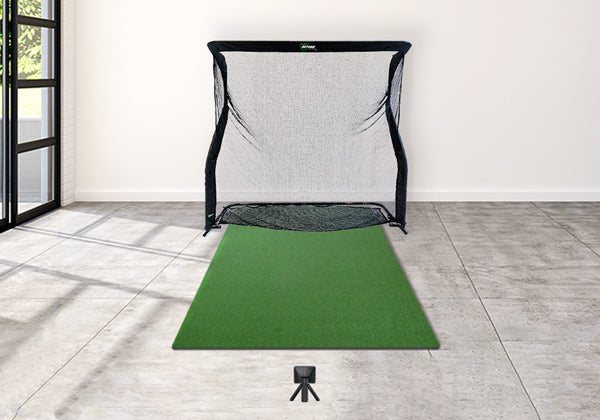
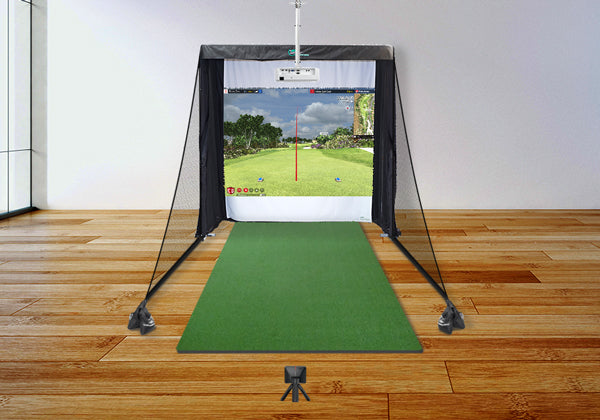
Then take it indoors. Set the R10 behind a mat, point it at an impact screen, and with simulator software the same numbers play a full round on a Tuesday in January. The Garmin Approach R10 DIY Enclosure Golf Simulator is that room in one order: a Carl's Place DIY enclosure with a premium impact screen in six sizes, a Real Feel hitting mat and a short-throw laser projector with its ceiling mount. Every pick updates the price and the 3D view, and the whole build goes to your cart as one package. Garmin asks for at least 8 feet from the tee to the screen indoors, and the package page lists a 17'9" minimum room depth. Starting from your measurements instead? The sim builder takes your room size and only shows options that fit.
See all Garmin Approach R10 Golf Simulator Packages we offer:



Find the Right Launch Monitor for Your Game
Top Shelf Golf is an authorized Garmin dealer, and the R10 ships free to the contiguous 48 states with Affirm financing available. Shop launch monitors → or call (888) 871-6110 for expert advice.


